
วิธีการใช้งาน Daijishō

วิธีการใช้งาน Daijishō

คู่มือภาษาไทยฉบับสมบูรณ์สำหรับ Front-end ของ Android

1. แพลตฟอร์ม (Platforms)

การเพิ่มแพลตฟอร์ม

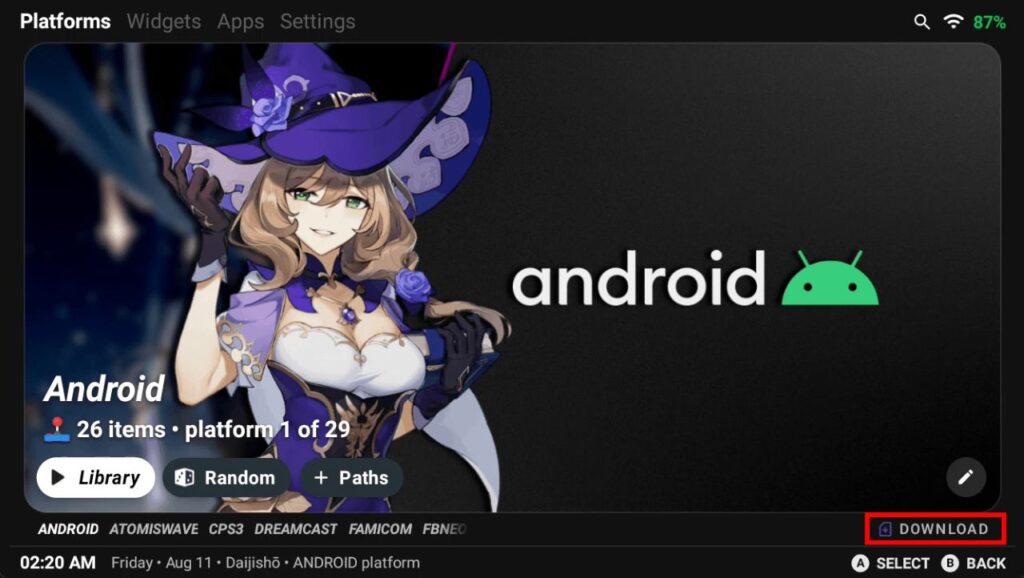
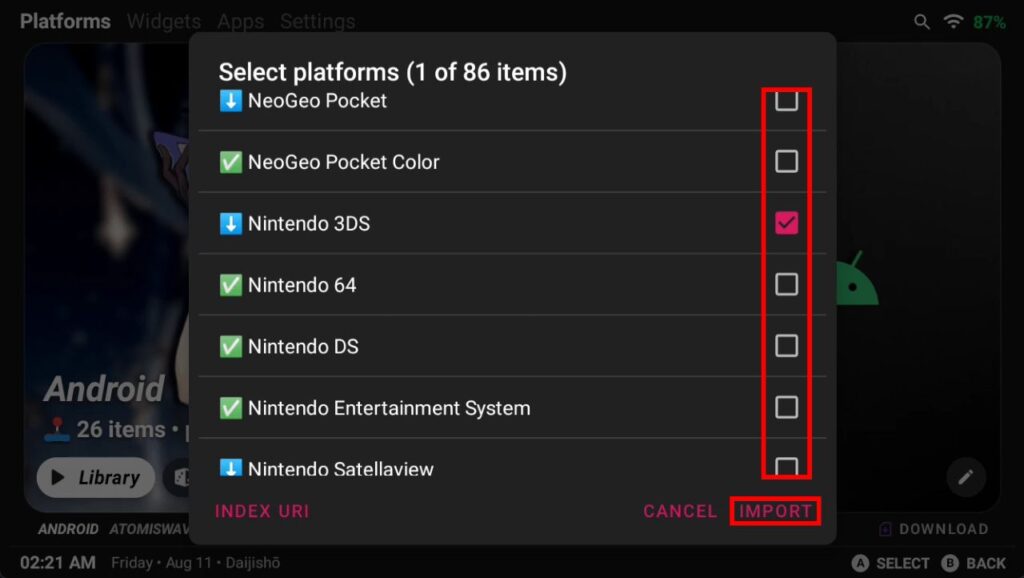
ไปที่ Download > เลือกแพลตฟอร์มที่ต้องการ > Import หรือผ่าน Settings > Library > Platforms
 

การเพิ่มแพลตฟอร์มด้วยตนเอง (Manual)

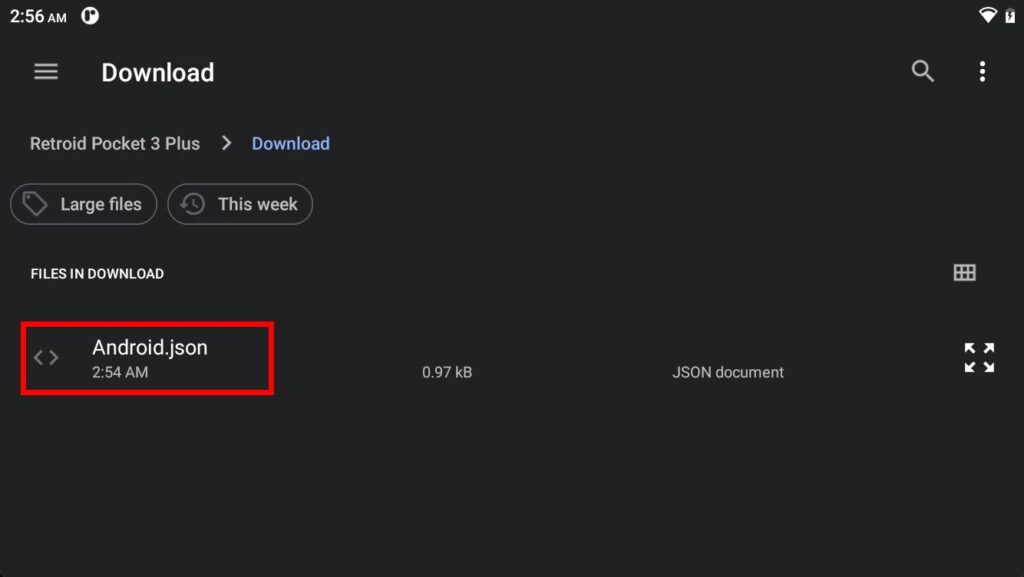
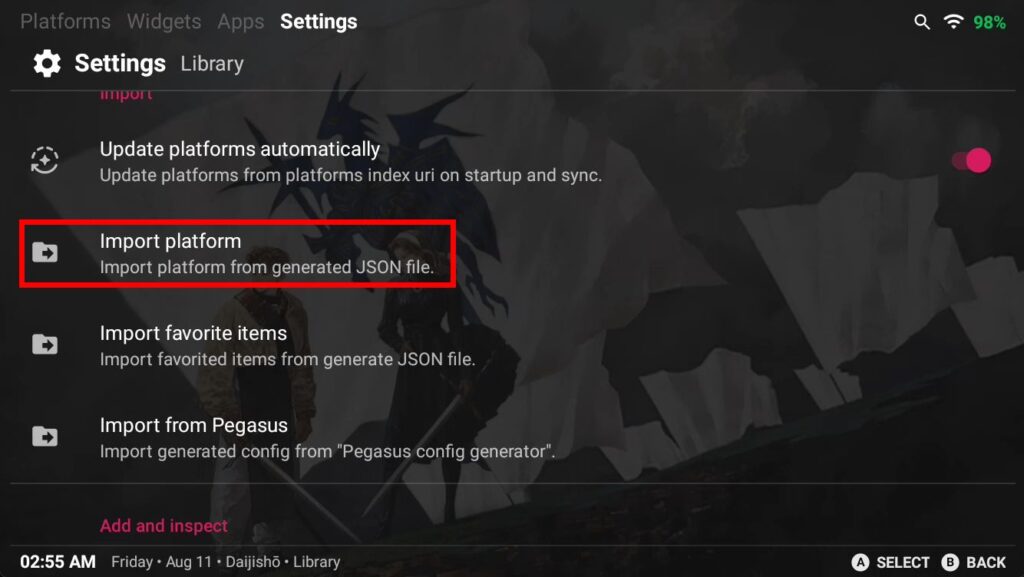
ดาวน์โหลดไฟล์ > Settings > Library > Import platform
2. เครื่องเล่น/อีมูเลเตอร์ (Players)

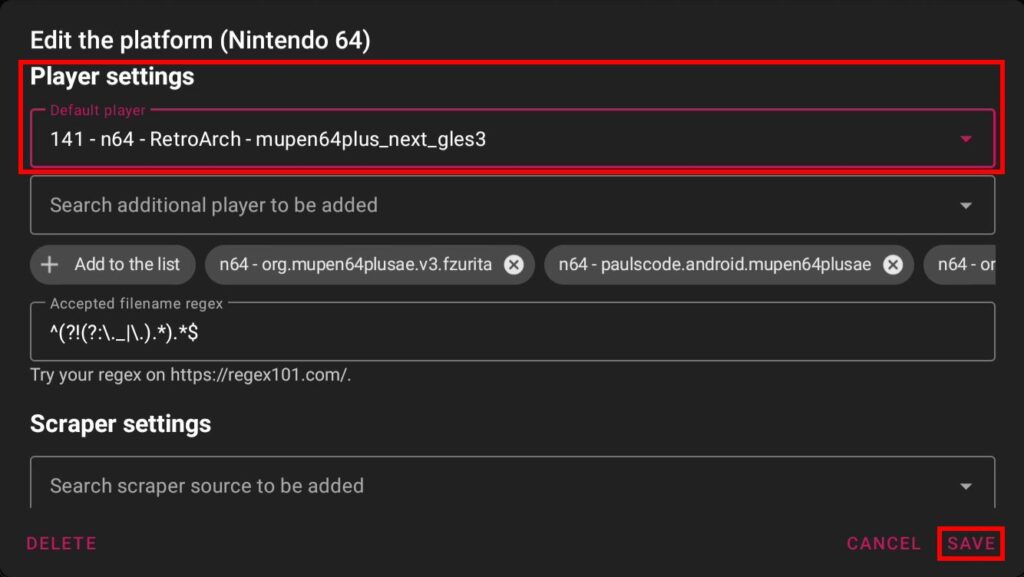
การเปลี่ยนเครื่องเล่นเริ่มต้น (Default Player)

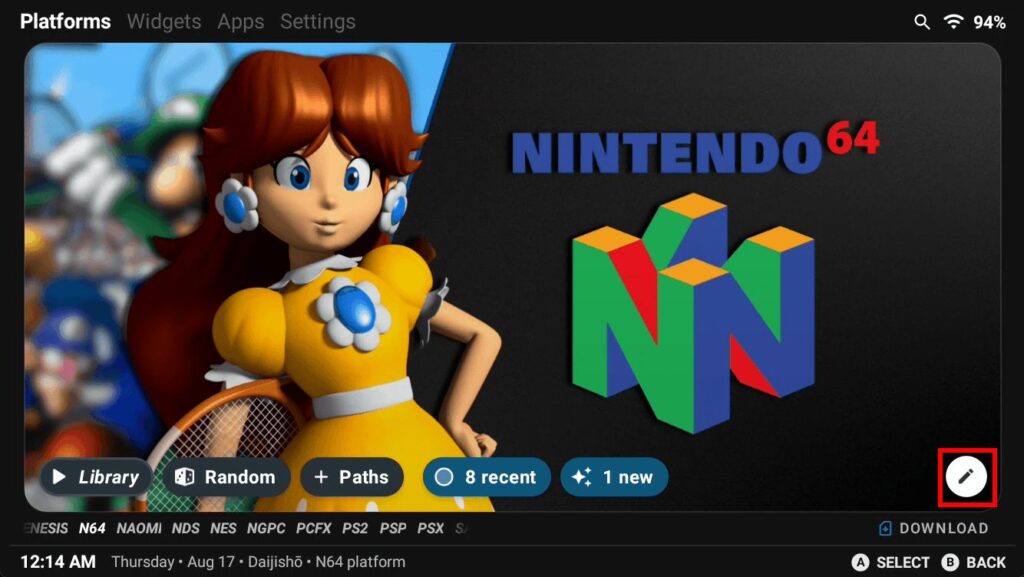
เลือกแพลตฟอร์ม > แตะไอคอน 🖊️ > เลือกเครื่องเล่นที่ต้องการในช่อง Default Player > Save
การตั้งเครื่องเล่นแยกตามรายเกม

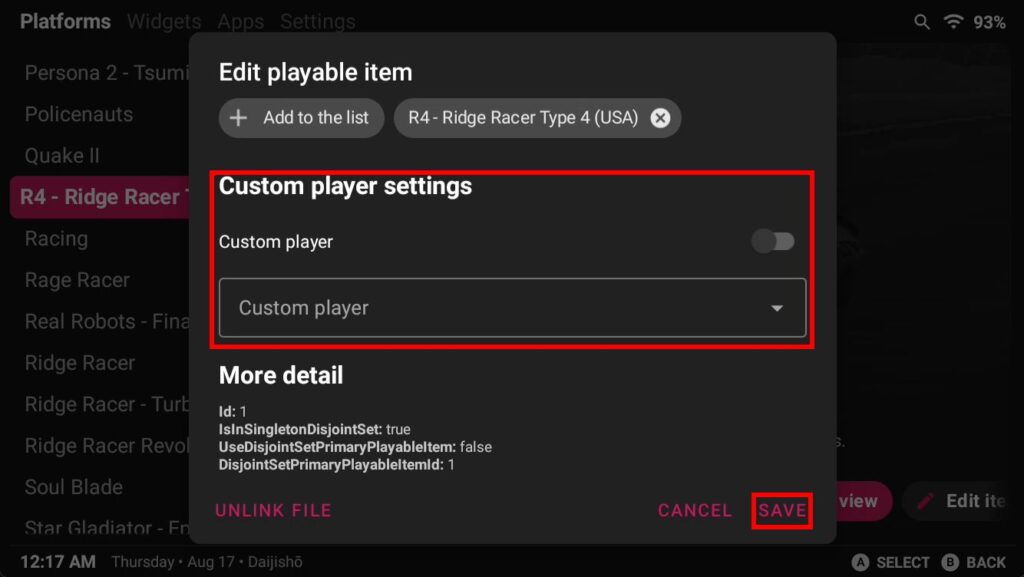
แตะค้างที่เกม > Edit Item > เปิดใช้งาน Enable Custom Player > เลือกเครื่องเล่น > Save
 

Highlight Platform > 🖊 > Select Player bubble
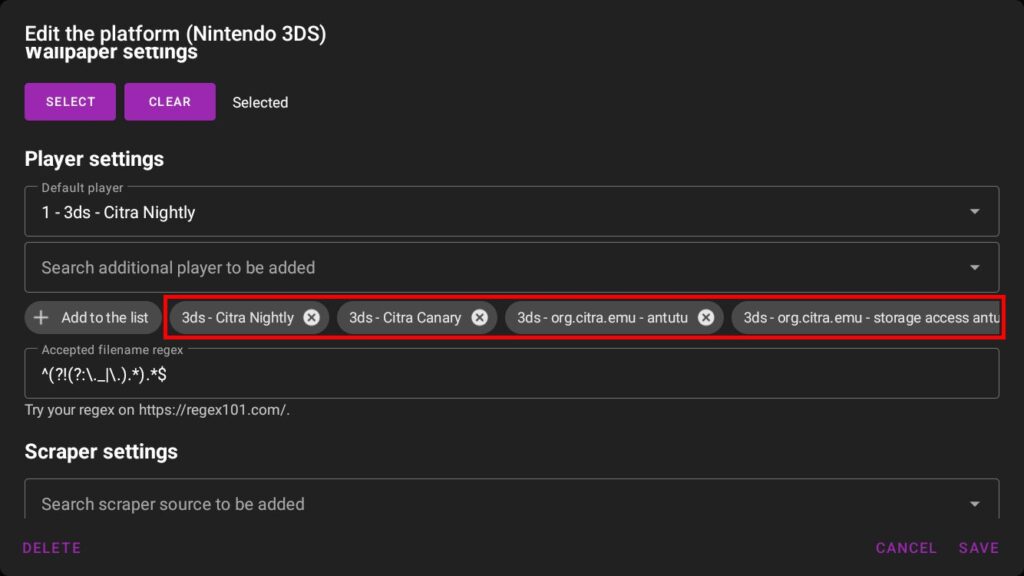
or

Settings > Library > Inspect players

3. การจัดการเกม (Games)

การเพิ่มเกม

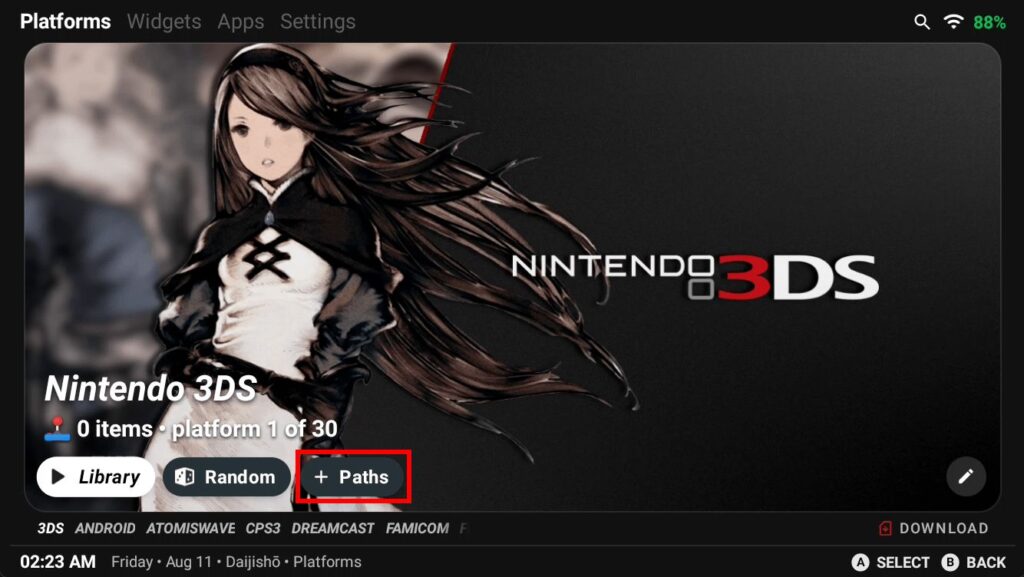
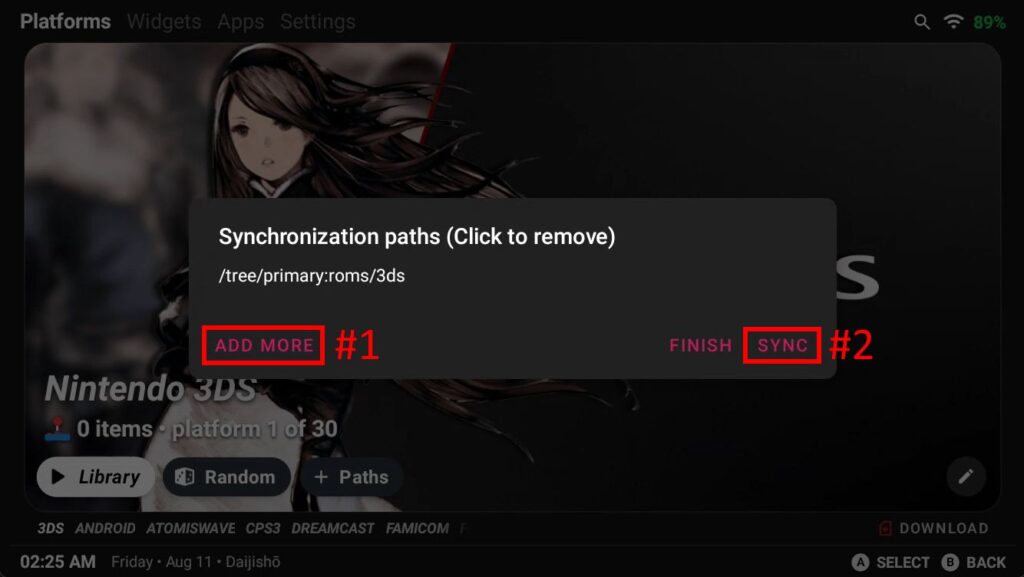
เลือกแพลตฟอร์ม > Add more > เลือกโฟลเดอร์ที่เก็บ ROM > Sync
Wallpapers

Adding Wallpaper Packs

Settings > Appearance > Download platform wallpapers pack

Manually Add Wallpaper

Highlight Platform > 🖊 > Wallpaper settings > Select image

Add Wallpaper to Apps tab

Settings > Appearance > Set wallpaper

Wallpaper Gallery

Link
Daijishō Wallpapers Packs

Hotkeys

Setting > Navigations > Hotkeys

Hotkey Action 1 Action 2 Action 3 Action 4
Search Search button      
Tabs Switches between top tabs      
Switching Switches platforms on Platform page Jumps letters on game list view    
First Additional Random game selector on Platform page Game list view changer on game list Moves widget on Widget page Switches between all apps & only games on Apps tab
Second Additional Opens Detail page on game list view Opens dropdown on widget on Widgets page Opens dropdown on apps on Apps tab  


Advanced Options

  • You better have some basic programming knowledges before you decide to use console.
  • App can be unstable. Which can ruin your experience.
  • Your data might be lost and gone forever because of the command.
  • You have to be aware and responsible for your decision.

Enable Console

  • Open Logger

Settings > Logger

  • Type debug on

Console Commands

Commands
Command Action/Example Data Type Description
help      
prefs set bool force_set_wallpaper_for_all true or false Boolean Set wallpaper for every pages if true. Cosmetic.
prefs set bool hide_platforms_page_subtitle true or false Boolean Hide platforms page subtitle if true. Cosmetic.
prefs set bool enable_non_home_activity true or false Boolean Enable non home activity of Daijishō if true. For Dex users.
prefs set bool disable_widgets_page true or false Boolean Disable widgets page if true.
prefs set bool use_pure_dark_theme true or false Boolean Use pure dark theme if true. For OLED devices.
prefs set bool use_lightweight_backup true or false Boolean Skip backups like images if true.
prefs set bool use_nsfw true or false Boolean Set true to allow adult content.
prefs set string scale_ui Example 0.8 String Scale your UI.
prefs set string category_widget_nav_aspect_ratio Example 2:3 String Aspect ratio for genres widget page box arts.

Adding Android Platform

Adding Magic DOSBox Platform

Magic DosBox: Creating .magicdos files
  • Open your Magic DosBox collection.xml file from your android device (Note this file is within your MagicDosBox user files that was chosen upon setup)
  • Example: MagicDosBoxGamesLitecollection.xml
  • The collection.xml will give you relevant information needed for each games id
  • Now create a text file and insert these lines within the file